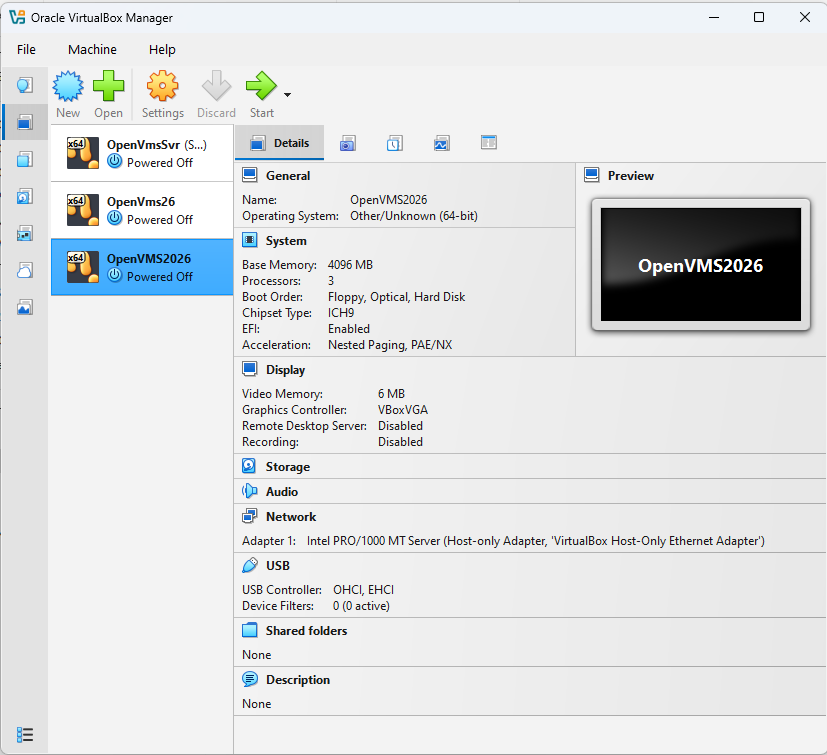
01 — Setting Up in VirtualBox
A licensed OpenVMS install, virtualized
The VM itself: 4GB RAM, 3 processors, EFI enabled, running on VirtualBox's standard chipset. No exotic setup required — just a properly configured virtual machine ready to boot a genuine OpenVMS x86_64 license.
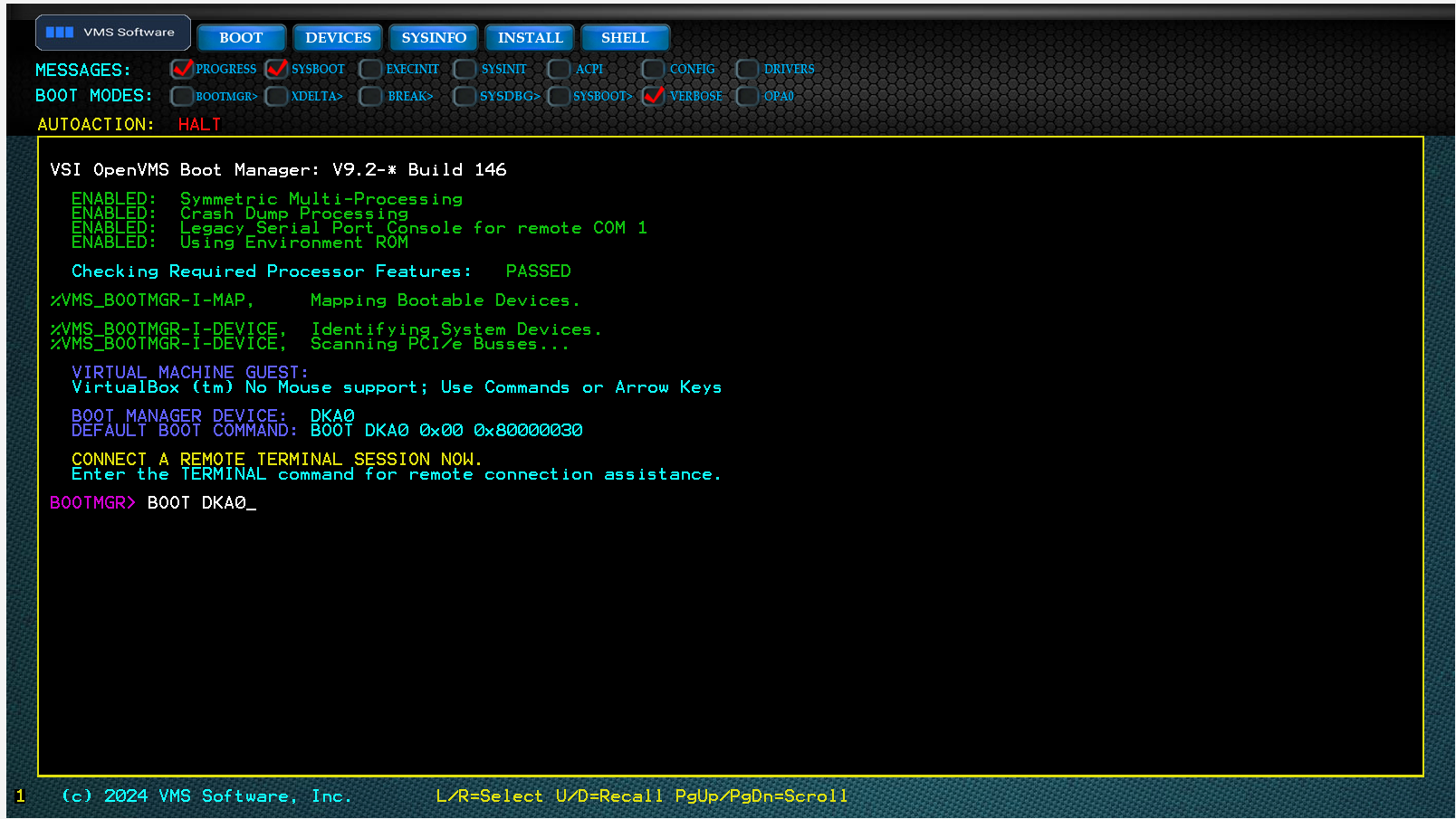
02 — The Boot Manager Screen
BOOTMGR> BOOT DKA0
VSI's OpenVMS Boot Manager for x86 — the modern equivalent of the SRM console — scans PCIe buses, identifies the boot device, and waits for the command. This is V9.2-* Build 146, fully current and fully supported.
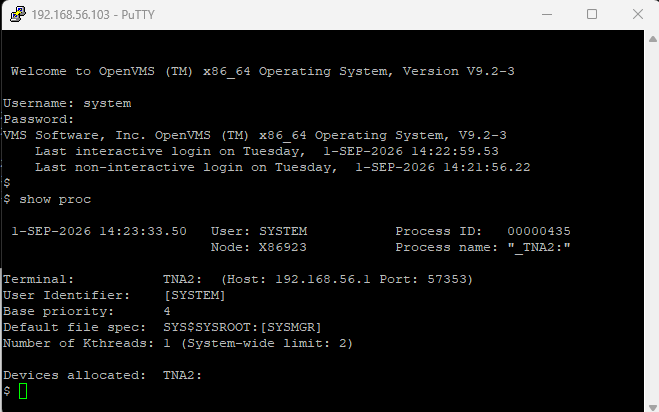
03 — Connected and Live
Straight into a real session
From here it's a normal PuTTY session into OpenVMS (TM) x86_64, Version V9.2-3 — logged in as SYSTEM, "show proc" confirming process ID, terminal, and allocated devices. This is the exact session a mentee would work in.